The concept
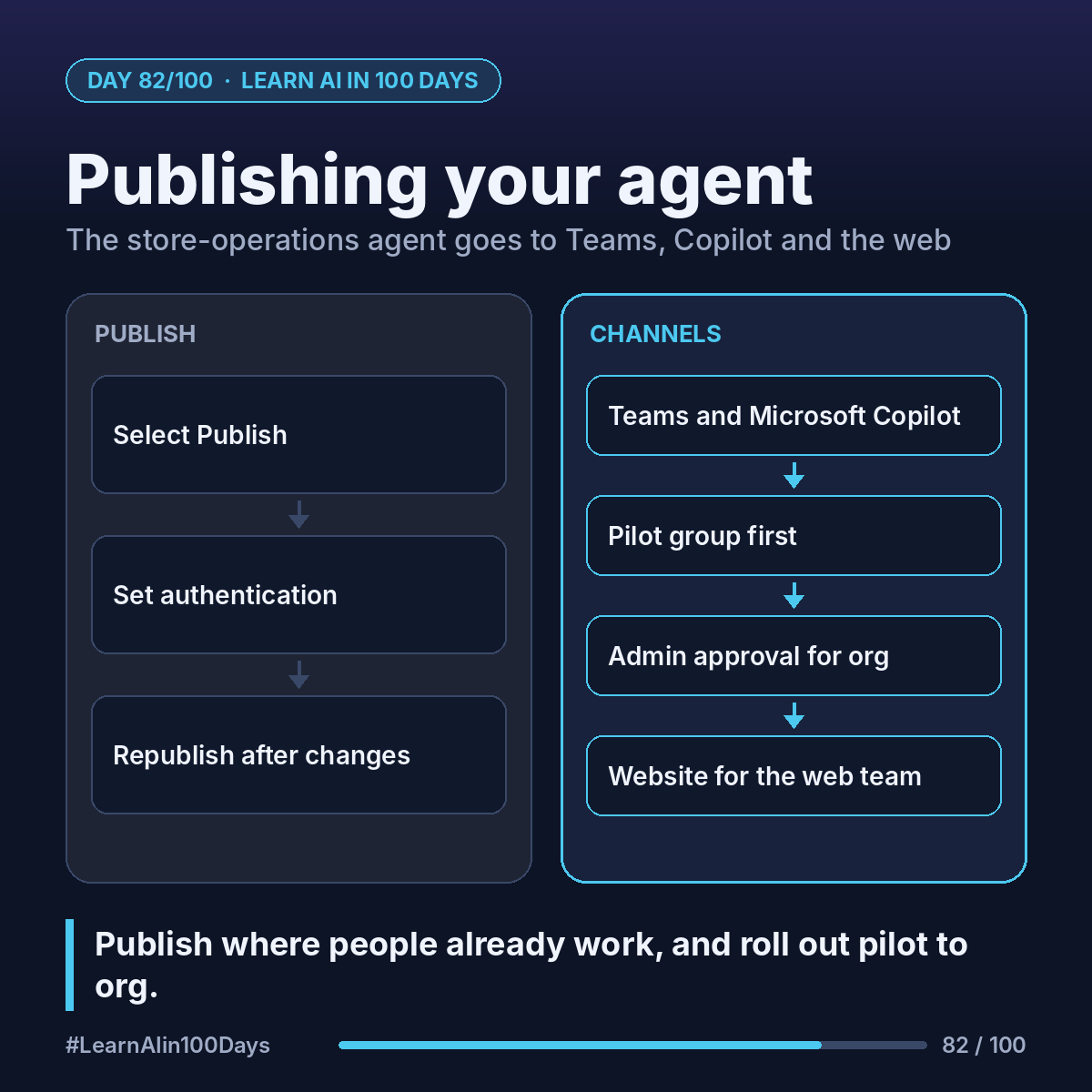
Publish: push your latest saved version live. It applies to every connected channel, and changes don't reach users until you publish again.
Channel: where people use the agent, e.g. Teams and Microsoft Copilot, SharePoint, Demo website, Custom website, Mobile app, WhatsApp.
Naming note: the channel tile reads "Teams and Microsoft Copilot" (what many call Microsoft 365 Copilot).
Authentication decides who can chat:
- Authenticate with Microsoft (default): uses Microsoft Entra ID, the company sign-in, for Teams and Copilot.
- No authentication: anyone with the link.
- Authenticate manually: for other channels you configure.
Walkthrough: store-operations agent to 3 places
1. Publish: select Publish, confirm. Takes a few minutes.
2. Teams and Copilot: Channels → Teams and Microsoft Copilot. Keep "Make agent available in Microsoft Copilot" ticked, then Add channel → See agent in Teams → Add. In Copilot chat, type @ and pick the agent.
3. Share with a pilot group: Availability options → "Show to my teammates and shared users". It appears under Built with Power Platform in the Teams app store, for shared users only.
4. Whole company: "Show to everyone in my org" → Submit for admin approval. An admin approves it in the Teams admin center. It then shows under "Built for your org", and admins can pin it for all store managers.
5. Website: Demo website is for testing with colleagues only (it needs No authentication; never share it with customers). For a real site, Custom website gives your web team a code snippet.
After any change: publish again. Teams can take up to an hour to update; typing "start over" refreshes a session.
Where you see it at work
- Retail: one agent in Teams for every store manager.
- Banking: staff agents in Teams, FAQs on the website.
- Insurance: a broker FAQ on the public site.
- Healthcare: staff-only agents behind company sign-in.
- PM: a pilot group first, then org-wide.
Try it today (10–15 min)
1. Read: https://learn.microsoft.com/en-us/microsoft-copilot-studio/publication-fundamentals-publish-channels
2. Publish a test agent (needs a paid license, not a trial).
3. Add the Teams and Microsoft Copilot channel and chat with it: https://learn.microsoft.com/en-us/microsoft-copilot-studio/publication-add-bot-to-microsoft-teams
4. Write your rollout plan: pilot users, approval owner, feedback channel.
In one sentence
Publish, pick channels where people already work, set authentication on purpose, and roll out from pilot to org with admin approval.
Where would your colleagues actually use an agent: Teams, Copilot or a website? 👇